
- Set up Customer Return Requests
- Inside Booster
- 1. Requirements and exact setup
- 2. Free, Plus and Elite
- 3. Test the basic account workflow
- 4. Elite: set an item policy and inspect the queue
- 5. Optional: verify guest orders separately
- 6. Read Returns Summary
- 7. Notifications and the private exercise
- Troubleshooting
Set up Customer Return Requests #
Before enabling this for customers, follow these steps on a staging store with test orders and test email delivery.
Start with signed-in customers and one completed order. Add item-specific policies or verified guest access only when you need them.

Inside Booster #
1. Requirements and exact setup #
- Booster 9.0 with WooCommerce active, and an account with current WooCommerce-management permission.
- PHP 7.3 or later on a 64-bit build with working native integer
hrtime(). There is no wall-clock fallback. Use a maintained PHP version supported by your WordPress and WooCommerce versions. - An eligible completed order owned by the signed-in test customer. Recorded claims, refunds and current facts also constrain eligible quantities.
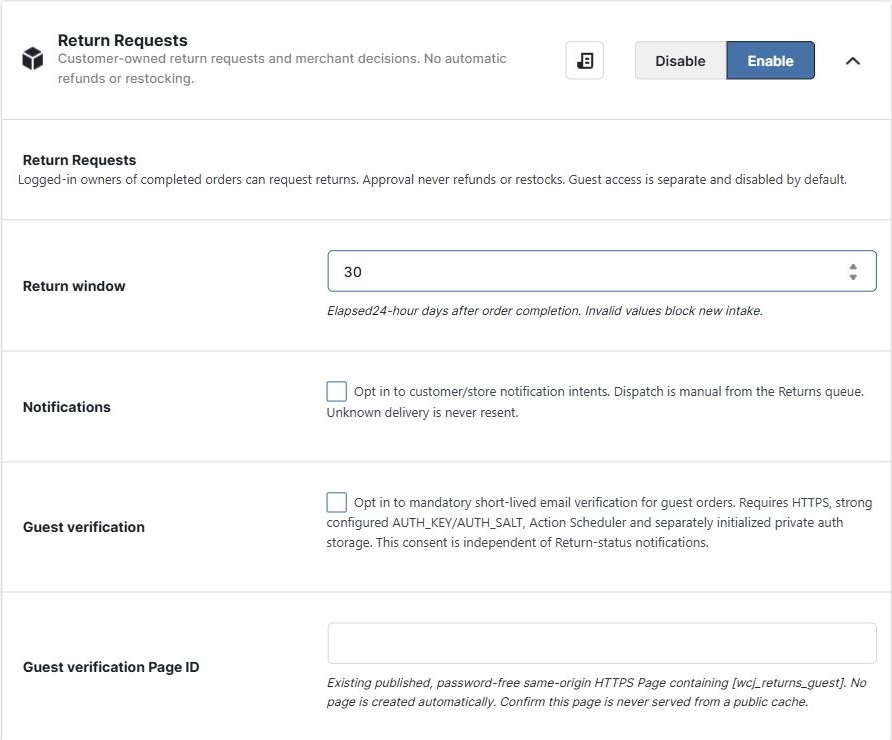
- Open Booster > Plugins > Shipping & Orders > Return Requests and enable Return Requests. The module is disabled by default.
- Set Return window to a whole number from 1 to 365. The default is 30 elapsed 24-hour days after the completed order’s completion time, not calendar or business days.
- Open WooCommerce > Return Requests. When offered, choose Initialize private return storage. Opening the setup guide alone does not initialize it.
- Leave Notifications and Guest verification off for your first account test. They are separate opt-ins.
The on-page Return Requests setup guide shows configured values and a manual checklist. It does not prove storage, HTTPS, page privacy or email readiness. Existing incompatible storage is preserved; do not delete or replace it to force setup.
2. Free, Plus and Elite #
| Capability | Free | Plus | Elite |
|---|---|---|---|
| Account requests, history, decisions and store-wide window | Included | Included | Included |
| Separately configured verified guests | Included | Included | Included |
| Item-specific windows and exclusions | Not included | Not included | Included |
| Status/exact order ID filters and current-page reports | Not included | Not included | Included |
| Latest up to 50 request summary | Included | Included | Included; also reused in Morning Store Briefing |
3. Test the basic account workflow #
- On staging, sign in as the customer who owns a completed test order. Open that order from My Account.
- Select one eligible item quantity and optionally enter a plain-text reason. Submit one request, then inspect its history.
- As the merchant, open WooCommerce > Return Requests, inspect the same request and record a deliberate decision.
- Return to the customer’s order history. Confirm the decision is recorded. Separately confirm no refund, restock or payment was performed merely by recording it.
Expected result: an eligible request and its history are visible to the owning customer and authorized merchant, not another customer. A decision updates that history. A request can select at most 20 item lines and a reason can contain at most 500 characters. At most 100 requests are retained per order.
Pending requests may be cancelled through the permitted customer flow. Approval does not receive a parcel or release stock. If current facts have changed, a Needs review hold can conservatively hold the whole order. There is no automatic reconciliation action to release it.
4. Elite: set an item policy and inspect the queue #
In the Return Requests settings, Elite item policy overrides takes one text rule per line, not JSON. Set the store-wide Return window to 30. Replace the illustrative IDs with existing staging IDs, where variation 456 is a variation of product 123. Each ID may appear only once per kind.
product:123=30
variation:456=14
category:789=exclude
Expected interpretation: product 123 has a 30-day window, variation 456 has a 14-day window, and a matching direct category 789 excludes the item. Any matching exclusion wins. Otherwise precedence is variation, purchased parent/product, shortest current direct-category window, then the store-wide window.
For a variation 456 bought under product 123 and not excluded by a matching category, the example selects 14 days. With the 14-day result, an order completed 10 elapsed 24-hour days ago is within the window; one completed 20 days ago is expired. In a multi-item request, the shortest selected window applies. If a matching category 789 exclusion applies, the item is excluded instead. The rule does not guarantee eligibility: order status, elapsed time, claims, refunds and current facts are still checked.
Use exact positive IDs and 1-365 days or exclude, with at most 100 rules and 8192 bytes. Invalid or deleted configured targets block new intake rather than silently using the default. Existing history and permitted cancellation remain separate.
In WooCommerce > Return Requests, Elite can filter by status or exact order ID, not a formatted order number. Age buckets count pending requests on the current page using complete elapsed days. Reason counts group the submitted text exactly; they are not verified root causes or whole-store totals.
5. Optional: verify guest orders separately #
- Provide real HTTPS, compatible Action Scheduler and strong configured
AUTH_KEY/AUTH_SALTauthentication prerequisites. - Create a published, password-free, same-origin HTTPS Page containing
[wcj_returns_guest]. Booster does not create this page for you. - Save the existing page’s ID in Guest verification Page ID. Exclude that page from public caching and verify its private behavior on the actual stack.
- Enable Guest verification. In the Returns queue, use Initialize or repair guest auth storage and prune expired rows when available.
- Test with a synthetic guest order and isolated mail. The guest supplies the order reference and billing email, requests a verification code and completes the short-lived flow bound to that order.
Expected result: only successfully verified access to the bound order proceeds. Missing prerequisites mean unavailable, not anonymous access. Consent to verification email is independent of Return-status notifications. Cleanup is bounded and operation-driven; disabling the feature does not guarantee cleanup.
6. Read Returns Summary #
Open WooCommerce > Return Requests summary. It reads the latest up to 50 request IDs, not the most recently updated requests. A sample of 50 is marked possibly truncated; it does not prove more rows exist. Current review/unavailable flags are sequential reads, not an atomic snapshot or extra disjoint request statuses.
The optional booster/returns-summary WordPress Ability accepts exactly this input when the host API and registration are available and the current caller is authorized:
{"scope":"summary"}Expected result: a bounded summary with basis: latest_request_ids and sample_limit: 50. When facts are available, sample and status/review counts describe that sample. Unavailable dependencies, policy or storage produce unknown counts rather than zero. An unauthorized caller receives an access error, not a public summary. No customer/order identifiers, reasons or amounts are included. Elite Morning Store Briefing reuses the same bounded result.
7. Notifications and the private exercise #
Enabling Notifications creates notification intents for deliberate manual dispatch from the queue. It is not automatic email on every decision. An unknown delivery outcome must not be blindly resent.
The queue’s Private synthetic workflow exercise uses fixed facts, a capacity of 2 and retained private exercise rows. It creates no WooCommerce order, customer mail, refund, stock change or payment. Approval retains the claim; decline or cancellation releases it. It is not a catalogue-policy, customer-order or compatibility test. Keep the original token and read its history after an uncertain result; absence is still unknown, not permission to create or retry.
Troubleshooting #
| What you see | What to check |
|---|---|
| No customer request controls | Check that the module is enabled, storage is compatible, the signed-in customer owns the order, the order is completed, the order is within the configured return window and unclaimed eligible quantities remain. |
| New intake unavailable after saving policies | Check the store-wide value and, in Elite, every configured target and rule. Do not remove retained claims or existing storage to force access. |
| Needs review or unknown operation outcome | Read the existing request/history and reconcile the underlying facts. Do not blindly retry, resend or create a replacement request to clear uncertainty. |
| Guest form unavailable | Check HTTPS, the exact published page and shortcode, private caching, authentication prerequisites, Action Scheduler and separate auth storage. |
| Summary unavailable or smaller than the store | Check permission/module/storage first. The latest-50 bound is intentional. Never treat unavailable counts as zero or page/sample totals as whole-store trends. |
Review any other return/refund extensions before using overlapping workflows. A best-effort overlap warning is not proof of interoperability.
Return Requests feature overview | Rule explanations and Returns Summary guide | Existing Order Health and Morning Store Briefing guide


