
- Overview
- What Does the Back in Stock Notifications Module Do?
- How to Enable the Back in stock notifications Module in Your Store?
- How to Set or Edit the Settings of Single Product Page options?
- How to Set or Edit the Settings of Archives Product Page options?
- How to Set Form options for Back in stock notifications?
- How to Set Email Options for Back in Stock Notifications?
- How to Set Google reCAPTCHA Settings for Back in Stock Notifications?
- Tools for Back in Stock Notifications?
- Resetting Back In Stock Notifications Plugin Settings
Overview #
The Back in Stock Notifications Module by Booster helps you do exactly that by keeping your customers informed and engaged. When a product is out of stock, customers can simply sign up to get an automatic email as soon as it becomes available again. This way, they don’t have to keep checking your store, and they know they won’t miss out.
This feature is easy to set up and fully customizable. You can control how and when the notifications are sent, what the messages say, and who can subscribe. It gives your customers peace of mind, improves their shopping experience, and helps you recover lost sales. Instead of losing potential buyers when items go out of stock, you stay connected with them and bring them back when the product is ready. It’s a simple but powerful way to boost trust and grow your sales.
Read Features
What Does the Back in Stock Notifications Module Do? #
- Notify Customers Automatically – Send email alerts as soon as out-of-stock products are available again.
- Easy Signup Option – Let customers subscribe to restock alerts directly from the product page.
- Customizable Notification Message – Personalize the email content to match your brand’s voice.
- Works with All Products – Enable notifications for simple, variable, or grouped products.
- See Subscriptions – View who subscribed for each product in your dashboard.
- Boost Return Visits – Encourage customers to come back and complete their purchase.
How to Enable the Back in stock notifications Module in Your Store? #
Note: Download, install, and activate Booster for WooCommerce to get started with this Module in your store.
- Go to your WordPress site dashboard.
- Navigate to Booster > Plugins.
- Open the options available in the Marketing category (All Plugins tab).
- For the Back in Stock Notifications plugin in this section, toggle the button towards Enable.
- Click the Save Changes button.

Now you can begin customizing the plugin settings for Back in Stock Notifications as per your requirements.
How to Set or Edit the Settings of Single Product Page options? #
Back in Stock Notifications, available through the Booster for WooCommerce module, allow users to subscribe to out-of-stock products. Follow the steps below to configure the Back in Stock Notifications settings along with Email Notification options:
- Go to Booster > All Plugins > Marketing > Back in Stock Notifications.
- Expand the Back in Stock Notifications section.
- Click the Single Product Pages Options tab.
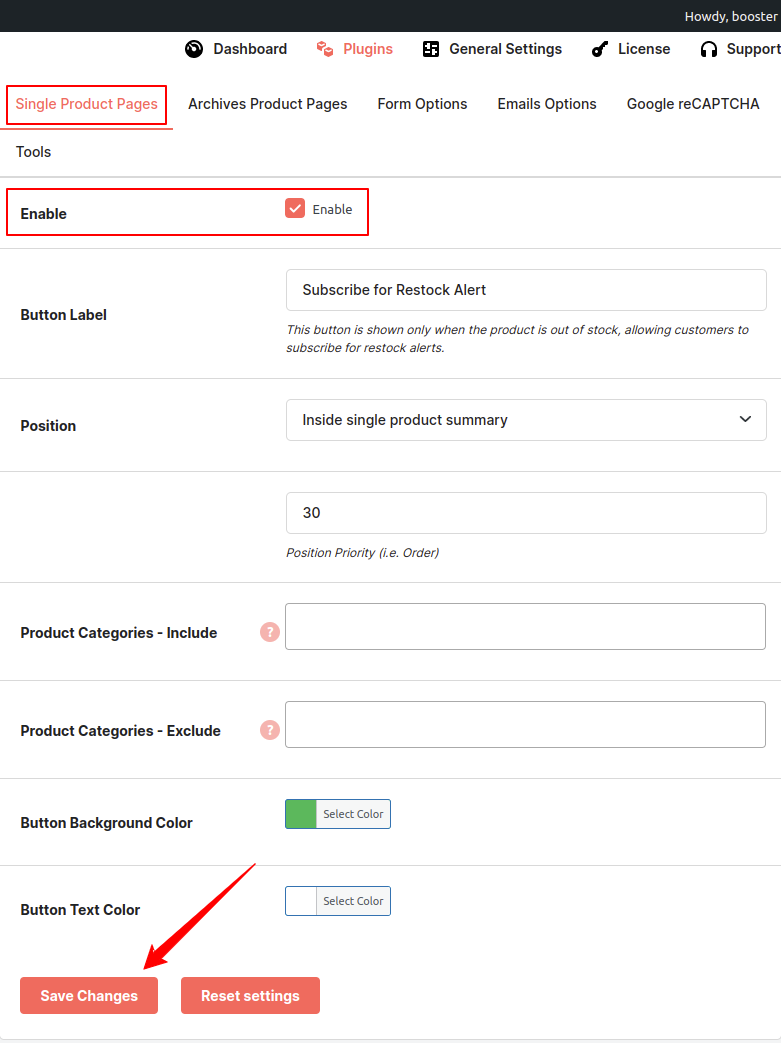
- You will see a list of Single Product Page options for Back in Stock Notifications:
- Enable: Use this to enable the subscribe option on single product pages.
- Button Label: Set a custom label for the subscribe button as per your needs.
- Position: Choose the location where the subscribe button will appear. Various positions are available.
- Product Categories – Include: Select categories where you want to show the subscribe button.
- Product Categories – Exclude: Select categories where the subscribe button should not appear.
- Button Background Color: Choose a background color for the subscribe button for visual styling.
- Button Text Color: Choose a text color for the button for better readability and design.
- Click Save Changes to apply your settings.
How to Set or Edit the Settings of Archives Product Page options? #
The Back in Stock Notifications Module allows you to show subscribe options in the archives product pages when products go out of stock.
By enabling an additional back in stock notifications option, you can enhance your customer’s shopping experience.
- Go to Booster > All Plugins > Marketing > Back in Stock Notifications.
- Expand the Back in Stock Notifications section.
- Click the Archives Product Pages options to show the settings option for archives product pages.
- Click Save Changes, and these settings will work for your WooCommerce store.

Explanation of Archives Product Pages Options Settings:
- Enable: Use this to enable the subscribe option on archives product pages.
- Button Label: Set a custom label for the subscribe button as per your needs.
- Position: Choose the location where the subscribe button will appear. Various positions are available.
- Product Categories – Include: Select categories where you want to show the subscribe button.
- Product Categories – Exclude: Select categories where the subscribe button should not appear.
- Button Background Color: Choose a background color for the subscribe button for visual styling.
- Button Text Color: Choose a text color for the button for better readability and design.
- Click Save Changes to apply your settings.
How to Set Form options for Back in stock notifications? #
With the Back in Stock Notifications module, allow you to customize the form fields. You can modify the form title and field names. By default, the Name and Email fields are required, but you can also add fields like Phone Number and Quantity, and set them as required based on your preferences. Additionally, you can customize the subscribe button label and design it to match your needs..
Here’s how you can customize the form options for back in stock notifications.
- Go to Booster > All Plugins > Marketing > Back in Stock Notifications
- Expand the Back in Stock Notifications section.
- Click the Form Option tab.
- Click on the Enable option.
- Modified the changes according to your desire.
- Click the Save Changes button to save the settings

Explanation of Form Options Settings:
-
- Subscribe Form Title: Allows you to customize the title text of the subscription form.
- Email Field Label: Lets you modify the label text for the email input field.
- Enable Name Field: Enables the name field and allows you to edit its label. You can also choose to make it a required field.
- Enable Phone Number Field: Enables the phone number field and lets you customize its label. You can also mark it as required.
- Enable Quantity Field: Enables the quantity field and provides the option to customize its label. You can also make it required by checking the corresponding box.
- Subscription Form Success Message: Allows you to set a custom message that appears after a successful subscription.
- Already Subscribed Message: Lets you customize the message shown when a user tries to subscribe to a product they’re already subscribed to.
- Submit Button Label: Lets you change the text displayed on the submit button to suit your preference.
- Submit Button Background Color: Allows you to style the submit button by setting a background color that matches your website’s design.
- Submit Button Text Color: Enables you to change the text color of the submit button to better fit your site’s color scheme.
Frontend View of Subscription Form #

How to Set Email Options for Back in Stock Notifications? #
With the Back in Stock Notifications module, you can set the Email and customize the email subject and email template.
Here’s how you can enable the Email options for Back in stock notifications.
- Go to Booster > All Plugins > Marketing > Back in Stock Notifications
- Expand the Back in Stock Notifications section.
- Click the Email option tab.
- Modified the changes according to your desire.
- Click the Save Changes button to save the settings

Email Options Settings Explanation:
Subscription Success Mail
This option allows you to send a confirmation email upon a successful subscription. You can also customize the email content.
-
- Subject: Use this setting to modify the subject line of the email. You can include dynamic tags like %product_title% and %website% to personalize it.
- Email Template: Use this setting to customize the email content. You can write any message and include dynamic tags such as %product_title%, %product_link%, %subscriber_name%, %subscriber_email%, %quantity%, %phone_mumber%, and %website%.
Back In Stock Mail
This option enables you to send an email notification when a product is back in stock, allowing customers to purchase it right away.
-
- Subject: Use this setting to change the subject line of the back-in-stock email. You can include tags like %product_title% and %website%.
- Email Template: Use this setting to customize the content of the back-in-stock email. You can include values such as %product_title%, %product_link%, %subscriber_name%, %subscriber_email%, %quantity%, %phone_mumber%, and %website%.
Admin Subscribed Notification
With this option, the admin will receive an email notification when a user subscribes to a product.
-
- Email Recipient: Use this setting to define the admin email address where notifications should be sent.
- Email Subject: Customize the subject line for the admin notification email using this option.
- Email Template: Modify the template for the admin email. You can use placeholders such as %product_title%, %product_link%, %subscriber_name%, %subscriber_email%, %quantity%, %phone_mumber%, and %website%.
How to Set Google reCAPTCHA Settings for Back in Stock Notifications? #
With the Back in Stock Notifications module, you can set the Google reCAPTCHA in the subscription form.
Here’s how you can enable the Google reCAPTCHA Settings for Back in Stock Notifications.
- Go to Booster > All Plugins > Marketing > Back in Stock Notifications
- Expand the Back in Stock Notifications section.
- Click the Google reCAPTCHA tab.
- Modify the changes
- Click the Save Changes button to save the settings

Google reCAPTCHA Settings Explanation:
This option allows you to set the reCAPTCHA in the form.
-
- Enable Google reCAPTCHA v2: Enable this option to display reCAPTCHA on the form.
- Site Key: Use this field to enter your Google reCAPTCHA site key.
- Secret Key: Use this field to enter your Google reCAPTCHA secret key.
- reCAPTCHA Theme: Choose the reCAPTCHA theme using this setting. Available options are 1) Light and 2) Dark — select the one that fits your site design.
- reCAPTCHA Size: Select the desired reCAPTCHA size from the dropdown list.
Frontend View of Subscription Form with recaptcha #

Tools for Back in Stock Notifications? #
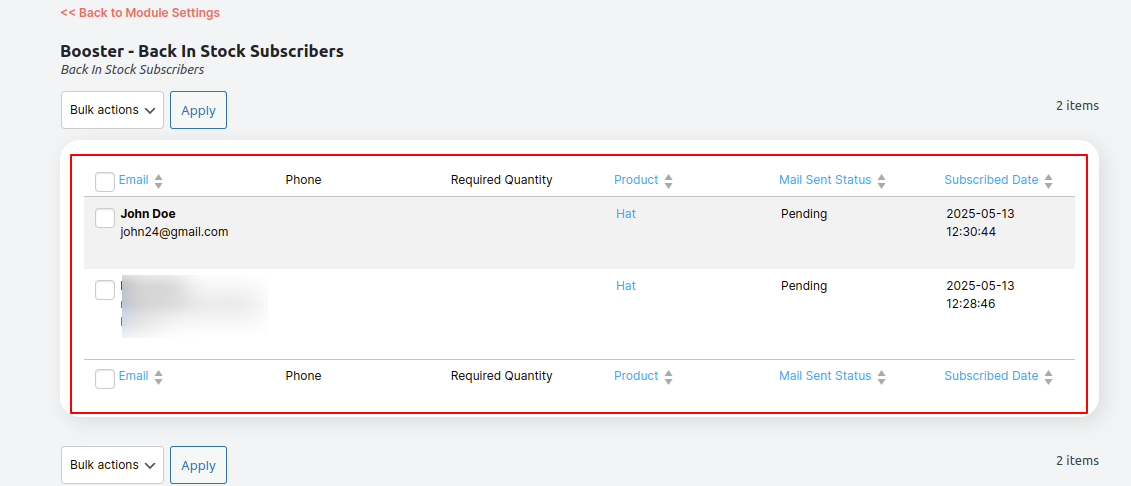
Click on the link to see the users list who subscribed for the product. Module should be enable to use this option.
Here’s how you can enable the tool for Back in Stock Notifications.
- Go to Booster > All Plugins > Marketing > Back in Stock Notifications
- Expand the Back in Stock Notifications section.
- Click the Tools tab.
- Click on the links to see the users list with subscribe product details
Frontend View of Users list with Subscribed Products #
Resetting Back In Stock Notifications Plugin Settings #
Want to use the default Back in Stock Notifications plugin settings or wish to modify these settings from the very beginning? Try resetting everything. To do so, follow these steps:
- Go to Booster > All Plugins > Marketing > Back in Stock Notifications
- Expand the Back in Stock Notifications section.
- For each of the tabs available for this module, click Reset Settings.

Important: If the Pre-order module is enabled, the Subscribe button will not be displayed. This is because the Preorder module takes priority and automatically sets the product to backorder status. If you wish to use the back-in-stock notifications feature instead, you must first disable the Preorder module. After disabling it, make sure to manually set the product status to “Out of Stock” in order for the Subscribe button to appear.


