
- Order Health setup and safe review workflow
- Requirements and access
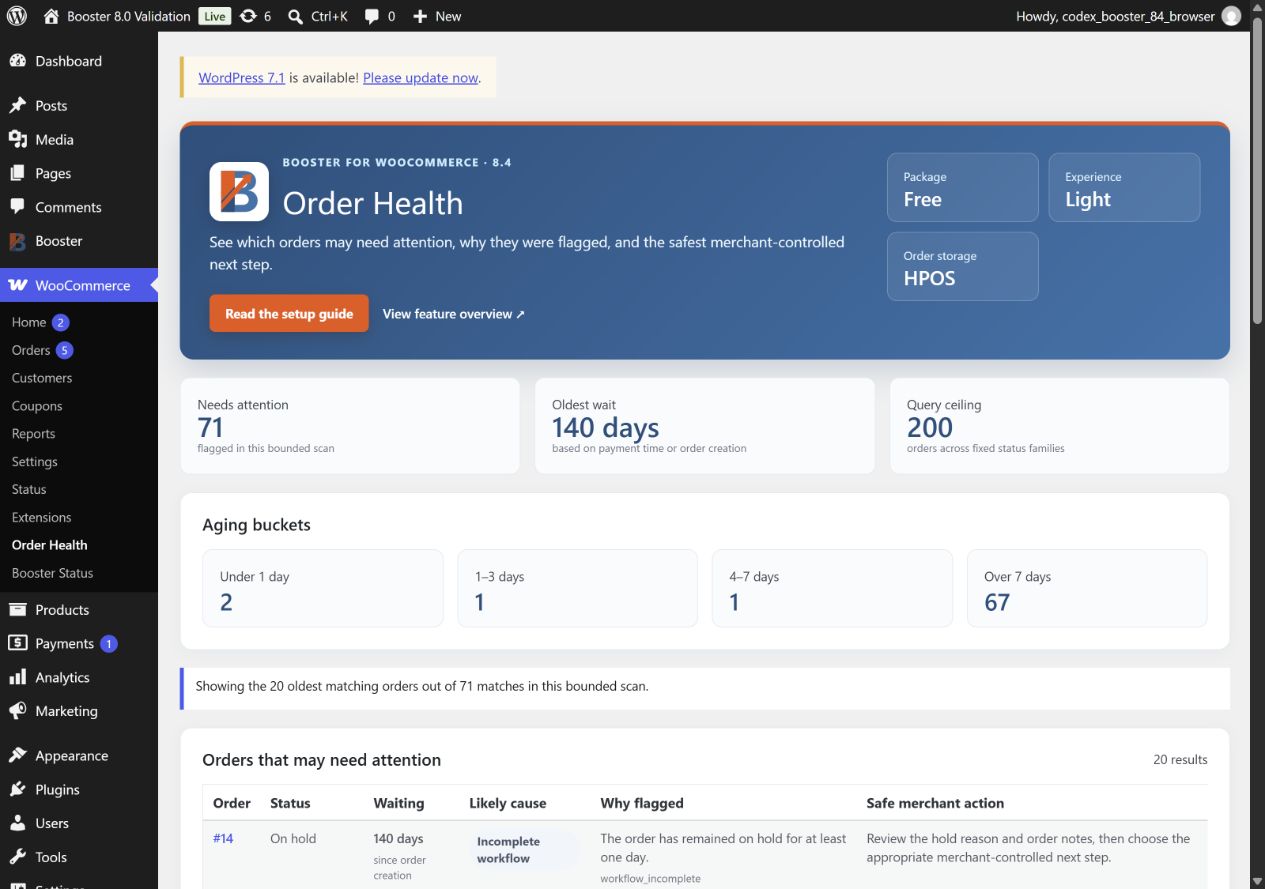
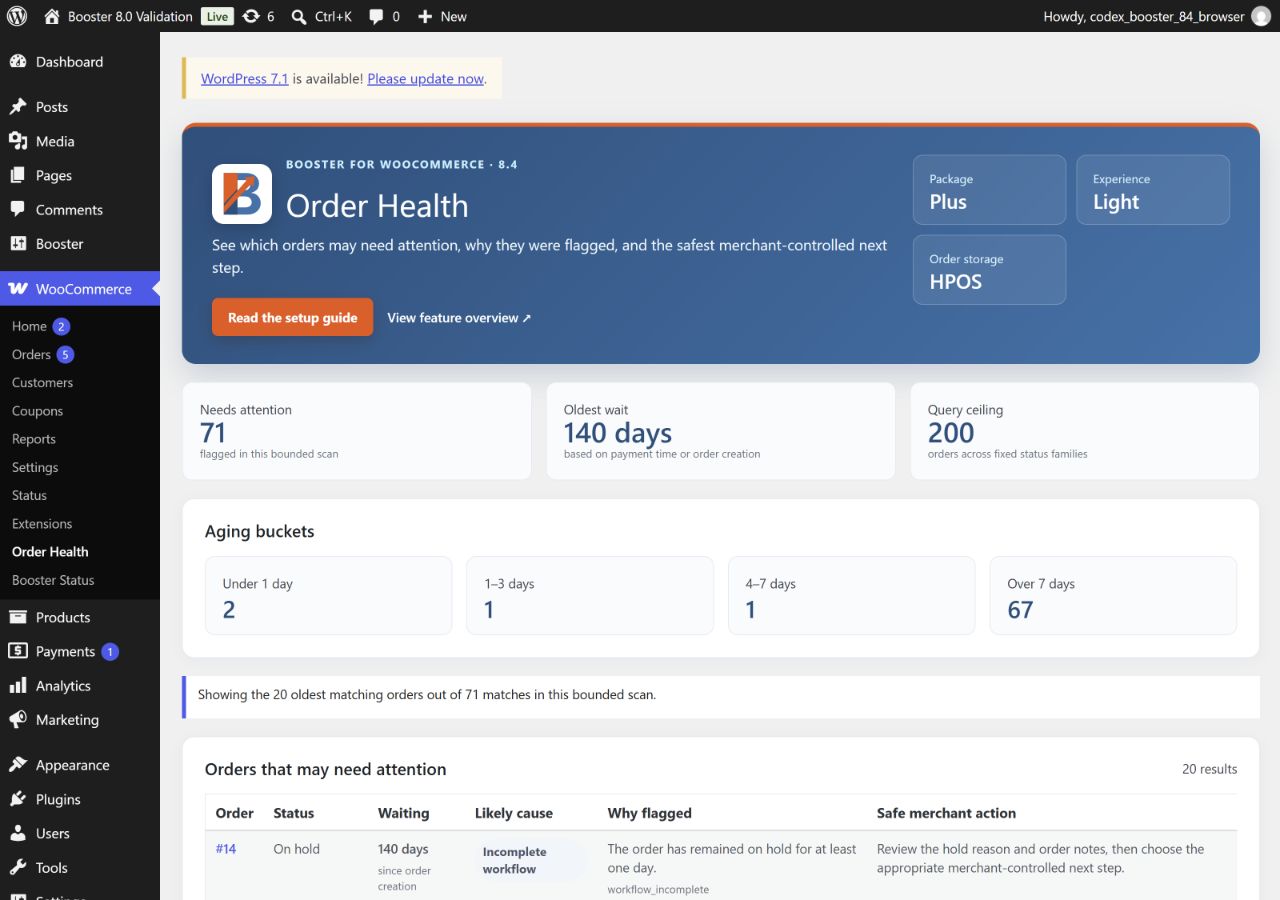
- Free and Plus: Order Health Light. Elite: Order Health Full.
- Review core delays with Order Health Light
- Narrow and summarize the complete Order Health view
- What each health family means
- Bounded reads across HPOS and legacy storage
- Privacy-safe Morning Store Briefing and read-only Ability
- If an expected order is not shown
Order Health setup and safe review workflow #
Find delayed orders, interpret explainable health reasons, and choose a conservative next step without allowing Booster to change an order.

Before you begin
Requirements and access #
- Booster for WooCommerce 8.4 or newer.
- WooCommerce installed and active.
- A WordPress account allowed to manage WooCommerce.
Open the dashboard at WooCommerce → Order Health. A second link appears in WooCommerce → Settings → Booster → Order Health.
Package matrix
Free and Plus: Order Health Light. Elite: Order Health Full. #
| Capability | Free 8.4 | Plus 8.4 | Elite 8.4 |
|---|---|---|---|
| Core delay reasons and aging | Light | Light | Full |
| Candidate / display bound | 200 / 20 | 200 / 20 | 250 / 50 |
| Health, aging, and search filters | — | — | Included |
| Custom-status and partial-refund signals | — | — | Included |
| Morning Store Briefing | — | — | Included |
| booster/order-health-summary Ability | — | — | Included |
| HPOS and legacy storage | Included | Included | Included |
Free and Plus workflow
Review core delays with Order Health Light #
- Start with the aging summary to see whether active orders have crossed a deterministic threshold.
- Read the core failed, pending, processing, or on-hold reason and its supporting detail.
- Open the source order and verify payment, fulfillment, or workflow state before making a manual change.
- If more than 20 rows need review, continue in WooCommerce Orders; Light never scans more than 200 candidates per request.
Elite workflow
Narrow and summarize the complete Order Health view #
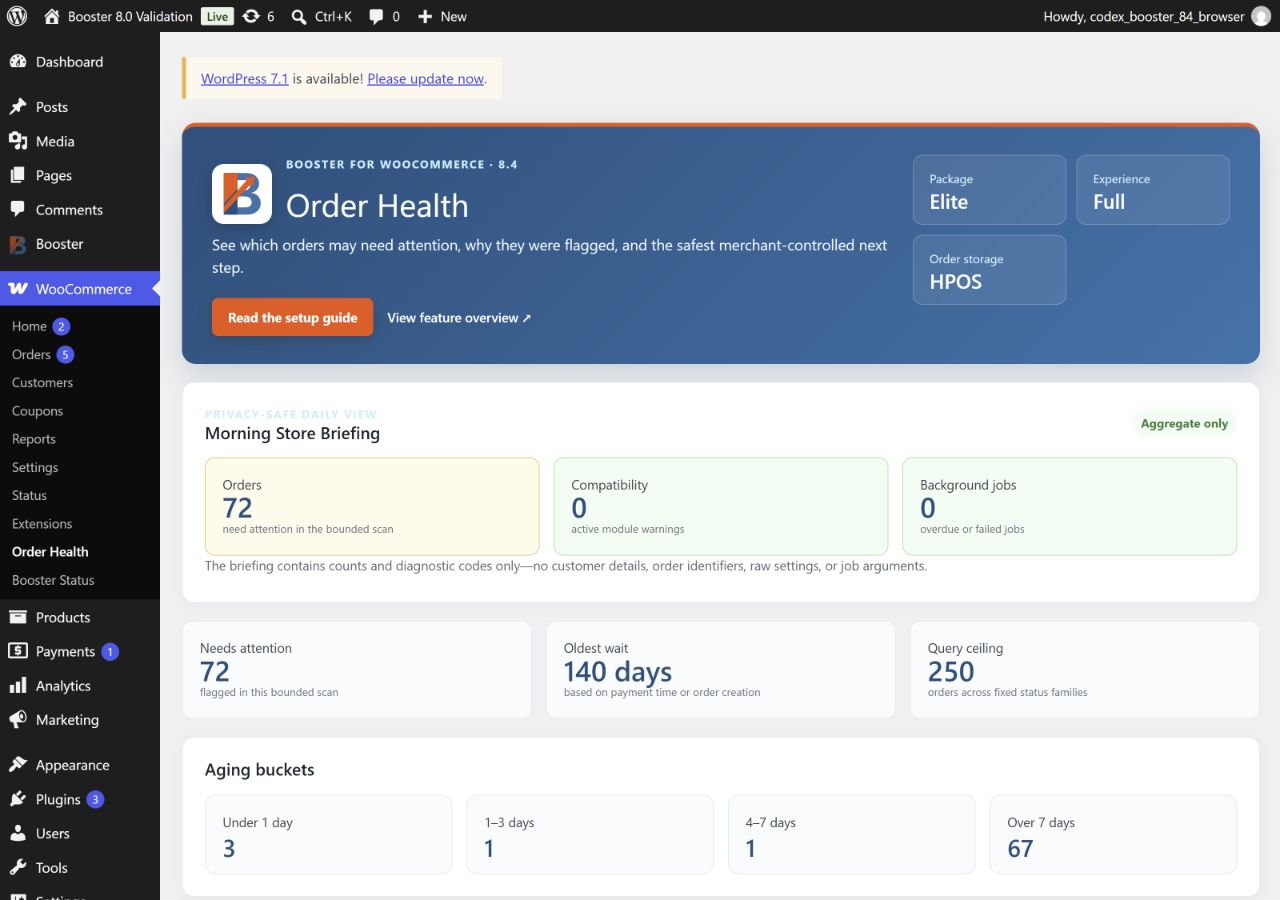
Start with the Briefing #
Use privacy-safe totals to see whether order operations need attention.
Filter the queue #
Narrow by health family, age, or search term.
Read advanced reasons #
Review custom-status and partial-refund signals alongside core delays.
Take the safe step #
Open the source order and verify before changing anything.
Explainable by design
What each health family means #
| Health family | What Booster detected | Safe merchant review |
|---|---|---|
| Payment | An active order is waiting in a payment-related state beyond its threshold. | Open the order and payment-gateway record; verify payment before changing status. |
| Fulfillment | A paid or processing order has waited for fulfillment longer than expected. | Check inventory, fulfillment ownership, shipment details, and internal notes. |
| Configuration | The order state suggests a store or workflow configuration needs review. | Inspect the related WooCommerce or Booster setting before editing the order. |
| Incomplete workflow | An expected order transition appears not to have finished. | Review order notes and background jobs, then decide the appropriate manual step. |
Compatibility and performance
Bounded reads across HPOS and legacy storage #
Order Health uses WooCommerce order APIs for both HPOS and legacy post storage. It reads a fixed set of active orders rather than running an unlimited store-wide scan. Terminal orders are excluded. Elite adds advanced custom-status and partial-refund signals; those signals are not part of Light.
Elite-only connected workflow
Privacy-safe Morning Store Briefing and read-only Ability #
Elite’s booster/order-health-summary Ability returns aggregate counts and health-family totals. Morning Store Briefing v1 can combine that summary with Booster compatibility warnings and background-job status without customer names, addresses, email addresses, phone numbers, or order line items.
Troubleshooting
If an expected order is not shown #
- Confirm the order is still in an active status and has crossed the deterministic age threshold.
- In Elite, clear filters before assuming no other flagged orders exist.
- Check the package’s bounded-scan limit and continue in WooCommerce Orders when needed.
- Review WooCommerce order notes; Elite users can also check Booster background-job status in the Briefing.


