

Description
WooCommerce Currency Exchange Rates module lets you can setup exchange rates settings for currency pairs used in other Booster’s multicurrency modules:
- WooCommerce Currency per Product
- WooCommerce Multicurrency Product Base Price
- WooCommerce Multicurrency (Currency Switcher)
- WooCommerce Payment Gateways Currency
- WooCommerce Prices and Currencies by Country
Currency Exchange Rates Module Options
General Options
- Exchange Rates Updates
- Here you can select currency exchange rates update interval. Possible values: Update Every Minute; Update Hourly; Update Twice Daily; Update Daily; Update Weekly.
- Default:
Update Daily
- Default:
- Exchange Rates Server
-
- Default:
European Central Bank (ECB)
- Default:
- Exchange Rates Rounding
- Enable this if you want currency exchange rates to be rounded.
- Default:
no
- Default:
- Rounding Precision
- If rounding is enabled – set precision here.
- Default:
0
- Default:
- Exchange Rates Offset – Percent
-
- Default:
0
- Default:
- Exchange Rates Offset – Fixed
- Here you can add a fixed offset to the rates. Can be positive or negative. If both percent and fixed offsets are set – percent offset is applied first and fixed offset after that.
- Default:
0
- Default:
- Calculate with Inversion
- If your currency pair have very small exchange rate, you may want to invert currencies before calculating the rate.
- Default:
no
- Default:
- Always Use cURL
- If for some reason currency exchange rates are not updating, try enabling this option.
- Default:
no
- Default:
Custom Currencies Options
You can add more currencies in this section. E.g. this can be used to display exchange rates with [wcj_currency_exchange_rate], [wcj_currency_exchange_rates_table] shortcodes.
- Total Custom Currencies
-
- Default:
1
- Default:
- Custom Currency #X
- Select additional currency here.
- Default:
Disabled
- Default:
Exchange Rates
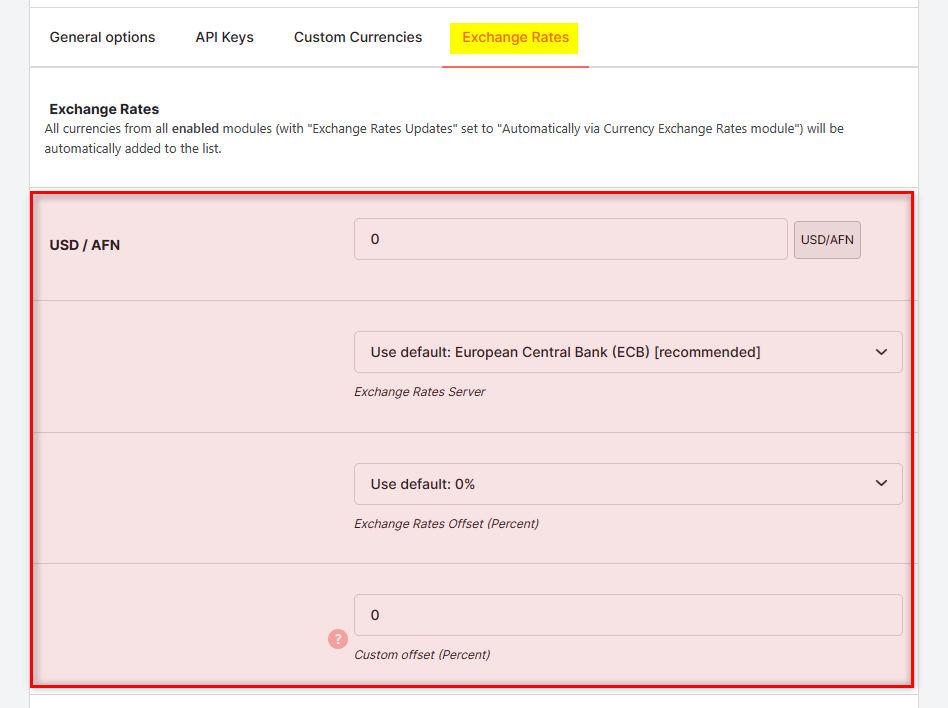
- Rate for Currency Pair
- Currency exchange rate for the current pair. By pressing button near each currency pair, you can grab current exchange rate.
- Default:
0
- Default:
- Exchange Rates Server
- If you want use another (i.e. not default / selected above) currency exchange rate server for the current pair, you can set it here. Possible values: Use default; Yahoo; European Central Bank (ECB); TCMB; Fixer.io; Coinbase; CoinMarketCap.
- Default:
Use default
- Default:
 Developers
Adding Custom Exchange Server
If you wish to add custom exchange server, you need these filters:
- `wcj_currency_exchange_rates_servers` and
- `wcj_currency_exchange_rate`.
For example, you could add something like this to your (child) theme’s functions.php file:
add_filter( ‘wcj_currency_exchange_rates_servers’, ‘booster_add_exchange_server’ );<br />
if ( ! function_exists( ‘booster_add_exchange_server’ ) ) {<br />
function booster_add_exchange_server( $servers ) {<br />
$servers[‘your_server_id’] = ‘Your server title’;<br />
return $servers;<br />
}<br />
}<br />
add_filter( ‘wcj_currency_exchange_rate’, ‘booster_get_exchange_server_rate’, 10, 4 );<br />
if ( ! function_exists( ‘booster_get_exchange_server_rate’ ) ) {<br />
function booster_get_exchange_server_rate( $rate, $server, $currency_from, $currency_to ) {<br />
if ( ‘your_server_id’ === $server ) {<br />
// TODO: calculate $rate here (using $currency_from and $currency_to)<br />
}<br />
return $rate;<br />
}<br />
}
Accessible through:
- WooCommerce > Settings > Booster > Prices & Currencies > Currency Exchange Rates for WooCommerce
 WooCommerce 11.0.1 and
  WordPress 7.0.4