

Description
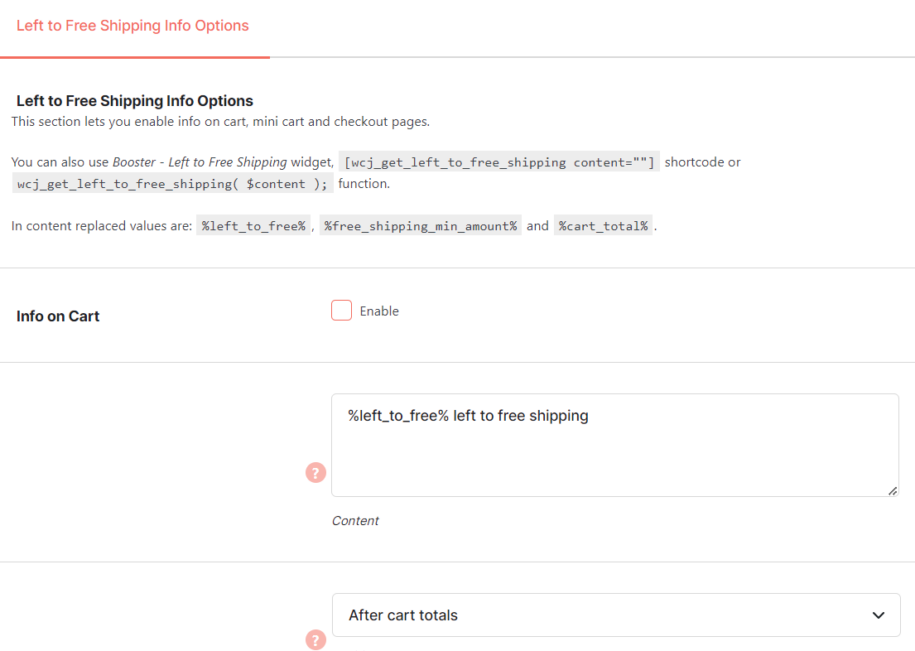
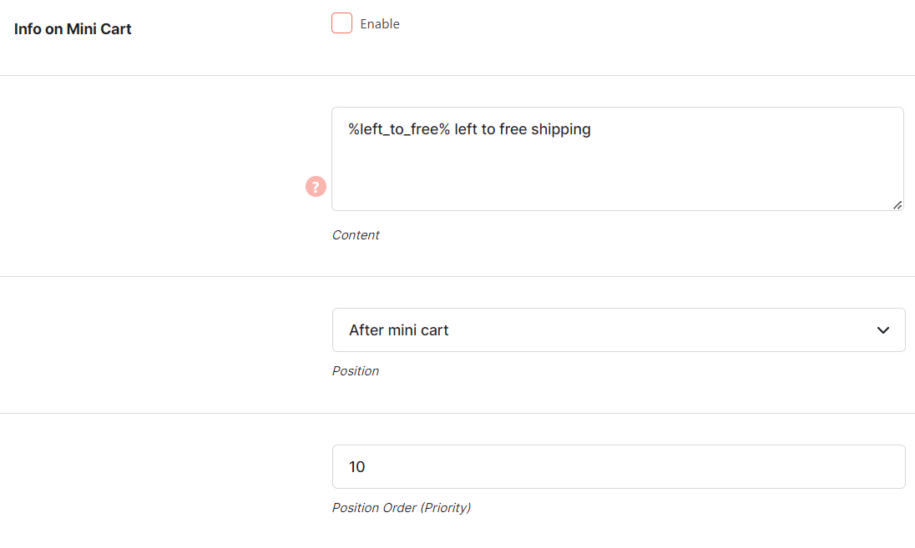
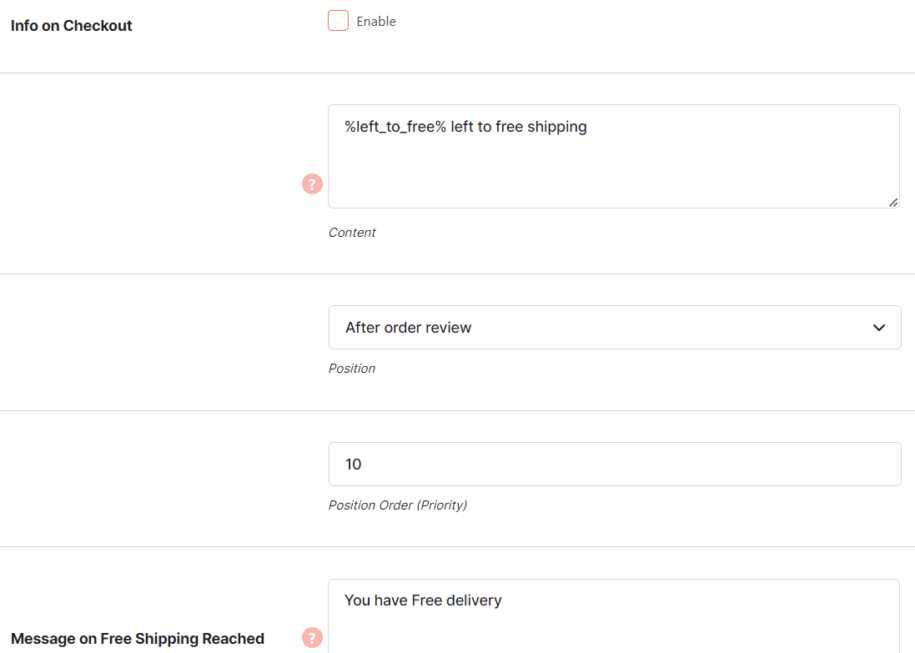
With WooCommerce Left to Free Shipping module you can display left to free shipping info. On settings page you can add “left to free shipping” info to cart, mini cart and checkout pages. To add info on other pages you can use:
- Booster – Left to Free Shipping widget,
[wcj_get_left_to_free_shipping content=””]- `wcj_get_left_to_free_shipping( $content );` function.
In content you can use: %left_to_free% and %free_shipping_min_amount% shortcodes, which will be replaced by appropriate amounts.
After your customer reaches the free shipping minimum amount, you can display customized Message on Free Shipping Reached. You can set it empty if you wish.
Add to cart Notice Section
There are two options.
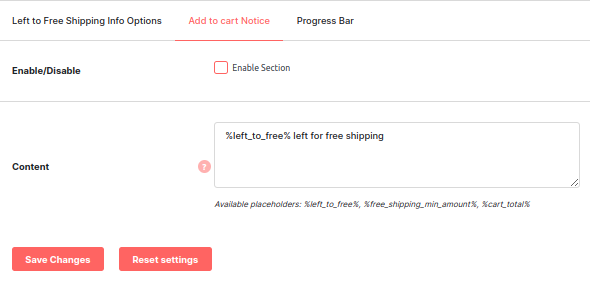
- Enable/Disable Option: This checkbox allows you to toggle the functionality on or off, enabling or disabling the Add to Cart Notice feature.
- Custom Message Input: You can enter a personalized message to be displayed in the Add to Cart Notice. Additionally, you can use the following placeholders:
- %left_to_free%: Represents the calculated value indicating the remaining amount needed to qualify for free shipping.
- %free_shipping_min_amount%: Displays the minimum amount required for free shipping to be applied.
- %cart_total%: Shows the total value of all items currently in the shopping cart.
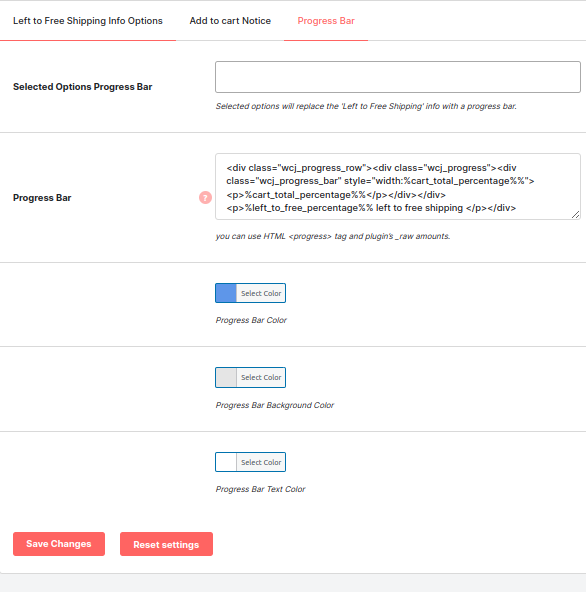
Progress Bar Section
- Choose an option to display a progress bar on the front end. The selected options will replace the ‘Left to Free Shipping’ info with a progress bar. You can also utilize the following options : Cart, Mini Cart and Checkout.
- Customizable Progress Bar: Customize the appearance of the progress bar with the following options:
- Progress Bar Color: Modify the color of the progress bar.
- Progress Bar Background Color: Change the background color of the progress bar.
- Progress Bar Text Color: Adjust the color of the text displayed on the progress bar.
Shipping Bar Section
- Choose an option to display a shipping bar on the front end at the top of the page or bottom of the page. The selected options add the ‘Left to Free Shipping’ info with a shipping bar. You can also utilize the following options : Cart, Mini Cart, Shop, Archive, Home and Checkout pages.
- Customizable Shipping Bar: Customize the appearance of the shipping bar with the following options:
- Shipping Bar Appearance: Select the enable or disable option to show the shipping bar.
- Shipping Bar Position: Select the Shipping bar position by selecting option. There are two options: 1) Top of page 2) Bottom of page .
- Shipping Display Pages: Select the pages to show the shipping bar like Home page , Cart page, Checkout page and many more.
- Shipping Message Template: Customize the message shown in the shipping bar.
- Shipping Mobile Display: Click the checkbox to show the shipping bar in the mobile display.
- Shipping Bar Colors: Modify the color of the shipping bar.

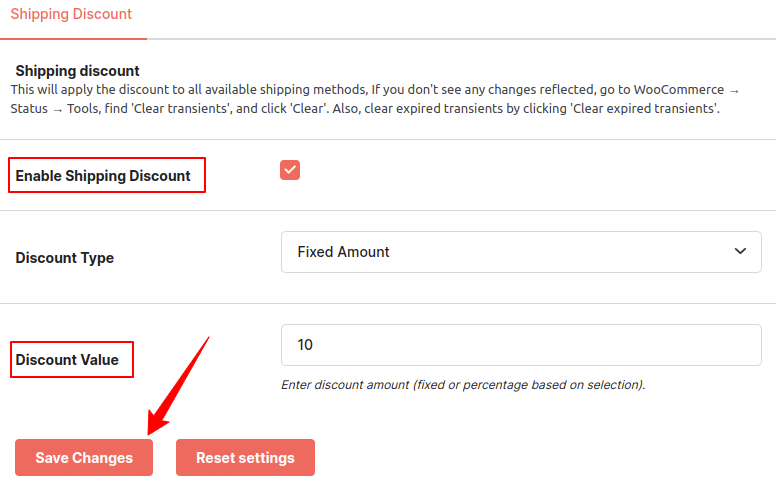
Shipping Discount Section
- Choose an option to display a shipping discount to all the available shipping methods on the front end. The selected options add the ‘Shipping Discount’. You can also utilize the following options : Cart and Checkout page.
- Customizable Shipping Discount: Customize the appearance of the shipping discount with the following options:
- Enable Shipping Discount : Select the enable or disable option to add the shipping discount.
- Discount Type: Select the discount type like fixed amount or percentage.
- Discount Value: Enter the amount to add the discount.
Accessible through:
- WooCommerce > Settings > Booster > Shipping & Orders > Left to Free Shipping for WooCommerce
 WooCommerce 11.0.1 and
  WordPress 7.0.4