

Description
The Back in Stock Notifications feature in WooCommerce allows customers to subscribe to out-of-stock products and receive automatic email alerts when those items become available again. This helps you recover lost sales by re-engaging interested shoppers the moment inventory is restocked. You can fully customize the “Notify Me” button label and control how and when notifications are sent.
Customers receive an email as soon as their desired product is back in stock, and they can manage their notification preferences easily through the built-in settings. With this feature, you’ll improve customer satisfaction, reduce bounce rates, and boost conversions – all while keeping your inventory under control.
What Can You Do with the WooCommerce Back in Stock Notification Module?
- Allow customers to subscribe to out-of-stock products with a single click.
- Automatically send email alerts when a subscribed product is back in stock.
- Customize the “Subscribe” button label and placement on product pages.
- Include or exclude specific products and categories from notifications.
- Manage and view subscriber lists directly from the WooCommerce admin panel.
- Track notification performance and recovered sales from restocked items.
- Add security with Google reCAPTCHA.
Getting Started with Back in Stock Notifications for WooCommerce
Once you have Booster for WooCommerce plugin and the Back in Stock Notifications module enabled for your store, getting started is hassle-free. Our user-friendly module interface keeps it all sorted for you. Still stuck? We have prepared a very detailed documentation to help our users understand how the Back in Stock Notifications Module works.
Why use the Back in Stock Notifications Plugin for WooCommerce with your store?
With our plugin, you have full control over Back in Stock notifications for your WooCommerce store. Let customers subscribe to unavailable products, automate email alerts, and customize every aspect of the experience. Here’s how it can benefit you:
- Recover lost sales by notifying customers the moment a product is restocked.
- Improve customer satisfaction by keeping them informed without manual effort.
- Customize the notification button text and display to match your store’s design.
- View and manage subscriber lists from the admin dashboard.
- Build trust and keep shoppers engaged until their desired item is back.
- Track performance and measure the impact on restocked product sales.
Back In Stock Plugin at Work
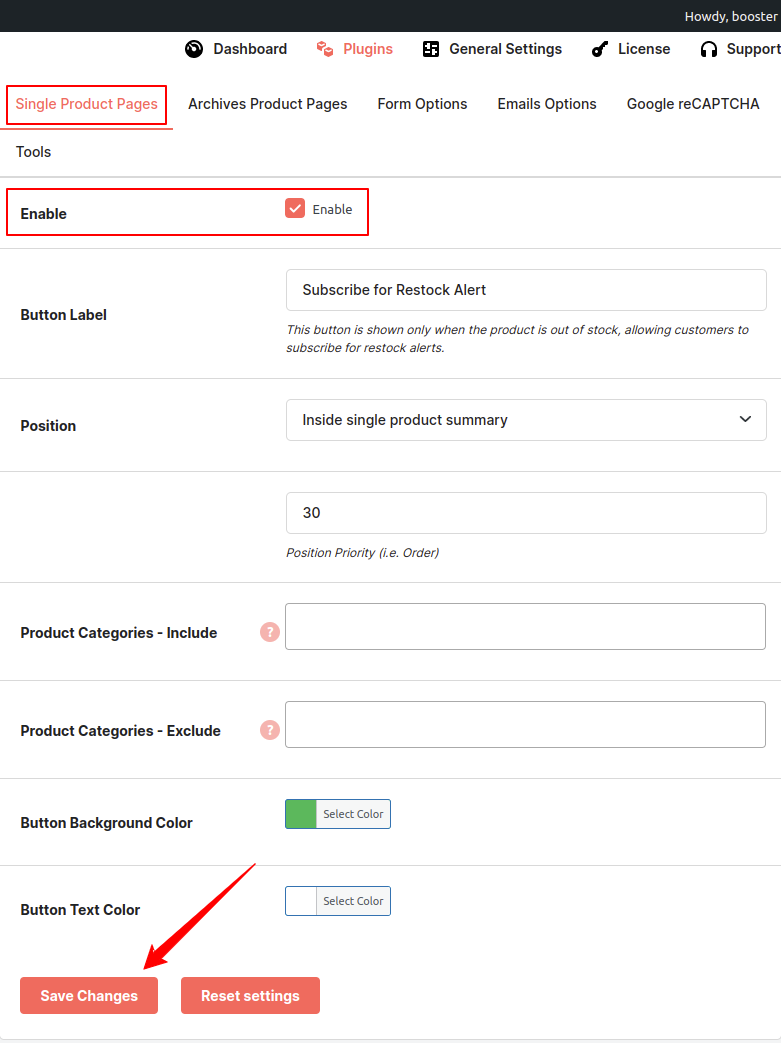
1. Edit Single Product Pages option functionalities
These settings allow you to enable subscription functionality on individual pages. You’ll find various options related to the subscription button, including controls for the button label, design, and the categories where the button should appear—all customizable to suit your preferences.
2. Edit Archives Product Pages option functionalities
These settings enable subscription functionality on product archive pages. You can customize various aspects of the subscription button, including its label, design, display position, and the specific product categories where it should appear—all tailored to suit your needs.

3. Edit Form option functionalities
These settings allow you to customize the form fields. You can modify the form title and field names. By default, the Name and Email fields are required, but you can also add fields like Phone Number and Quantity, and set them as required based on your preferences. Additionally, you can customize the subscribe button label and design it to match your needs.

Frontend View

4. Edit Email options functionalities
You can configure multiple email notifications using these options. Detailed descriptions of each option are provided below:
- Subscription Success Mail: This setting allows you to send a confirmation email to users after they subscribe to a product. You can customize the email subject and the content related to the subscription.
- Back In Stock Mail: This option lets you send an email notification to subscribers when the product is back in stock. You can set a custom subject and include relevant subscription-related content in the message.
- Admin Subscription Notification: When enabled, this option sends an email notification to the admin whenever a user subscribes to a product. The email includes the subscriber’s email address, subject line, and details related to the subscription products.

5. Edit Google reCAPTCHA option functionalities
These settings allow you to add the recaptcha for security. to add the recaptcha you juct need to enable the option and add the Site Key and Secret Key. You can set the reCAPTCHA Theme by selecting box and can set the reCAPTCHA Size as well.

Frontend View

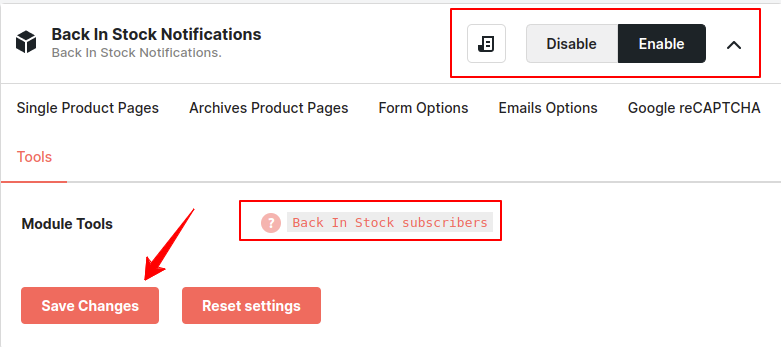
6. Tool Options functionality
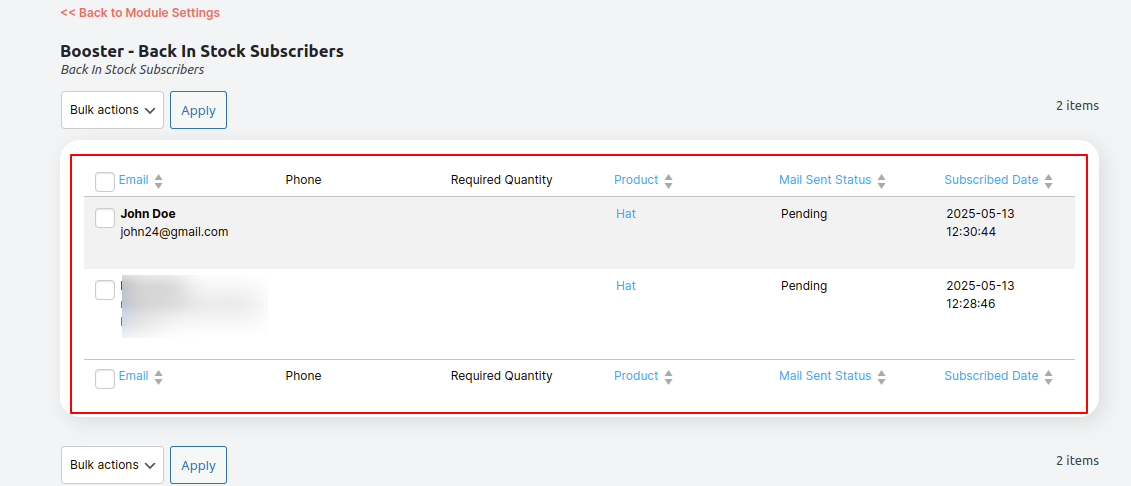
By clicking the link, you can view a table of subscribed products.
Note: The module must be enabled for the link to work.
Frontend View
Important: If the Preorder module is enabled, the Subscribe button will not be displayed. This is because the Preorder module takes priority and automatically sets the product to backorder status. If you wish to use the back-in-stock subscription feature instead, you must first disable the Preorder module. After disabling it, make sure to manually set the product status to “Out of Stock” in order for the Subscribe button to appear.
 WooCommerce 11.0.1 and
  WordPress 7.0.4