---
title: Custom JS
description: "## Overview Adding JavaScript code to your website’s header or footer is not an easy task. When you do not have a reliable plugin to add it, you may end up messing with the site’s functionality sometimes. Non-techies might even…"
url: "https://booster.io/docs/woocommerce-booster-custom-js/"
updated: "2025-10-06"
category: "Emails & Miscellaneous"
---
# Custom JS
## Overview
Adding JavaScript code to your website’s header or footer is not an easy task. When you do not have a reliable plugin to add it, you may end up messing with the site’s functionality sometimes. Non-techies might even hire expensive WP resources for doing this task every time. However, with Booster’s 110+ features bundle, adding custom JavaScript code to your WooCommerce store is no longer a hassle.
You can use its [**Custom JS Plugin**](https://booster.io/features/woocommerce-booster-custom-js/) to add custom JavaScript in the shop’s **header **or **footer**. Not just on the frontend, i.e., customers’ side, the plugin will also let you enable JS code for the backend, i.e., the administrator side too.
## How Do I Enable the Custom JS Plugin?
- Download the [Booster for WooCommerce Plugin](https://wordpress.org/plugins/woocommerce-jetpack/) on your Store.
- Enable and activate the plugin.
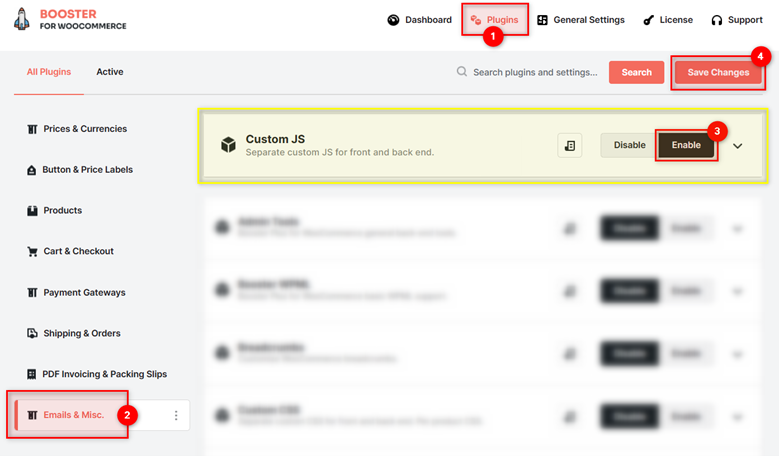
- Go to **Booster > Plugins > EMAIL & MISC. > Custom JS**.
- Select **Enable **for the **Custom JS**
- Click on the **Save Changes**
## How Do I Specify the Position of My Custom JavaScript (JS) Snippet?
You need to select the position for your custom JS snippet through the **Code Position **dropdown in the **Options** section. You can add it in the **Header** or the **Footer **of your website, as per the need of your WooCommerce Store.

## How Do I Add Custom JS for the Frontend of my WooCommerce Store?
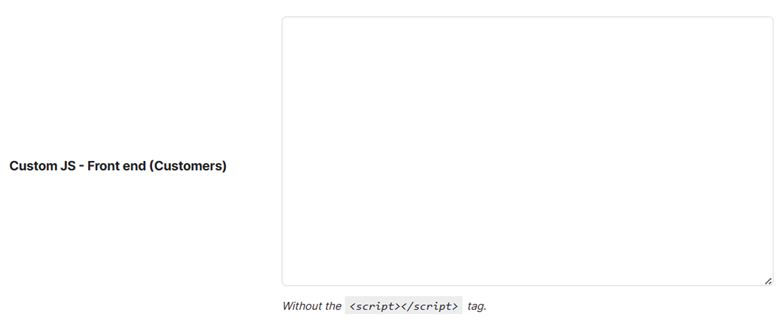
If you want to add a JavaScript code that functions on your online store (frontend or customer side), you must enter this code in the **Options > Custom JS – Front end (Customers)** input field.
There is no need to use the tag in this input. Just insert the pure JS code and click on the **Save Changes **button. The code should start working on the front end, as you’re expecting.
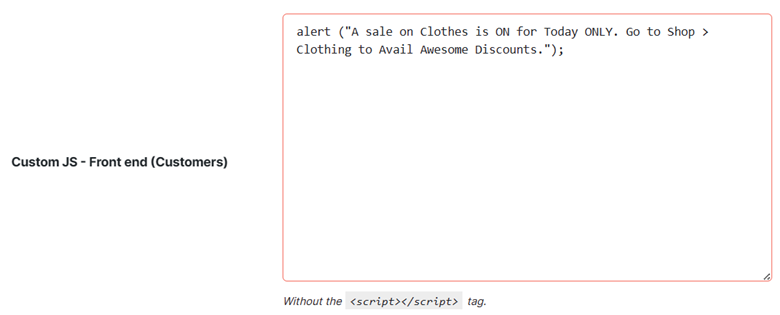
**Input Example:**
alert (“A sale on Clothes is ON for Today ONLY. Go to Shop > Clothing to Avail Awesome Discounts.”);
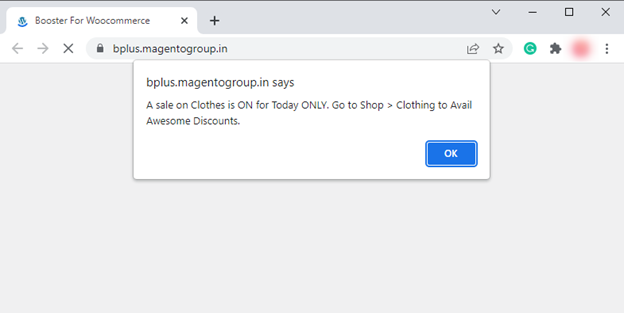
**Frontend Preview: A browser notification/alert through Custom JS**
## How Do I Add Custom JS for the Backend of my WooCommerce Store?
If you want to add functionality through custom JS in your admin dashboard, you must use the** Custom JS – Back end (Admin)** input field, present in the **Options** section on the **WooCommerce > Booster Settings > EMAIL & MISC. > Custom JS **plugin settings page.
Make sure that you add your custom Javascript without the tag and click on the **Save Changes **button.
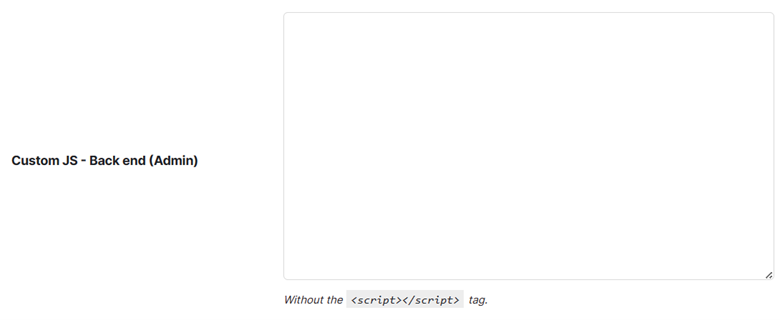
**Input Example:**
alert (“Welcome, Admin”);
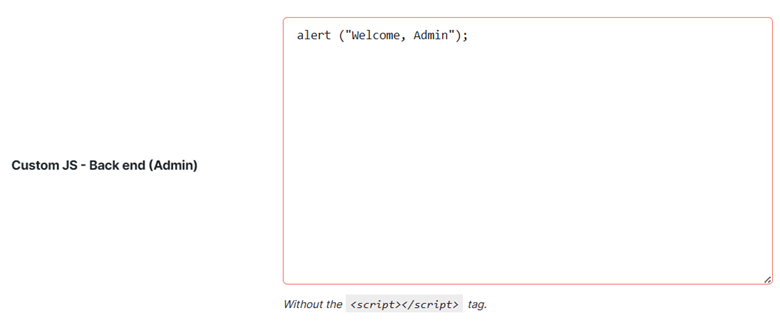
**Admin Preview: A browser notification/alert through Custom JS**

## When Might You Need Adding Script to your WooCommerce Store?
WooCommerce store owners can use the custom Javascript functionality in multiple ways for their shop. Here are a few examples where adding JS code in the site’s header or footer is fruitful:
### Enable Google Analytics for WooCommerce using Custom JS Plugin
Adding GA to your website is quite useful when you want to understand your site audience and their behavior better. As it requires adding a Javascript code snippet to your WooCommerce store, the **Custom JS Plugin** can be used here.
For this, you just need to put the **JavaScript** **Code** **for the Frontend** in the input box and set its position as Header. The process will be very easy when you use this Booster Plugin.
### Insert JS Code for your Plugins or As per the Custom Needs in Header/Footer
Just like the Google Analytics solution, there are other tracking solutions or WordPress/WooCommerce plugins/solutions that might need the insertion of JS code in the site header or footer to work. Use the **Custom JS** code to get started with them smoothly.
### Show Alert Message on a particular page
Just as we did in the above examples, you can show alert messages to your customers. With the JS’s ability to detect WooCommerce pages through functions and its conditional logic, you can display different alert messages on different pages, as needed.
### Show Reminders as Alert Messages to the Admin
Similar to alert messages to your customers, you can add a reminder or instruction for the admin login too.
### Add JavaScript Hooks to a Particular WP Page
It is a good idea to add hooks or functions to WordPress pages using the custom JavaScript code when your shop needs so. The **Custom JS Plugin **is a great means for doing this.